Systemd Deep Dive: From Confused to Actually Managing Services
A journey through systemd, systemctl, and D-Bus—discovering why restarting nginx works so differently from running it manually, and what all those mysterious *ctl commands actually do.
Systemd Deep Dive: From Confused to Actually Managing Services
I spent way too long thinking systemd was just some evil replacement for old init systems (thanks, early 2010s discourse on the internet). Turns out, once you understand what it actually does, it's... kind of brilliant?
The real aha moment came when I realized why manually running nginx and doing systemctl start nginx behave so differently. That's when everything clicked, and I actually started appreciating this thing that manages literally every service on my system.
What Exactly Is systemd?
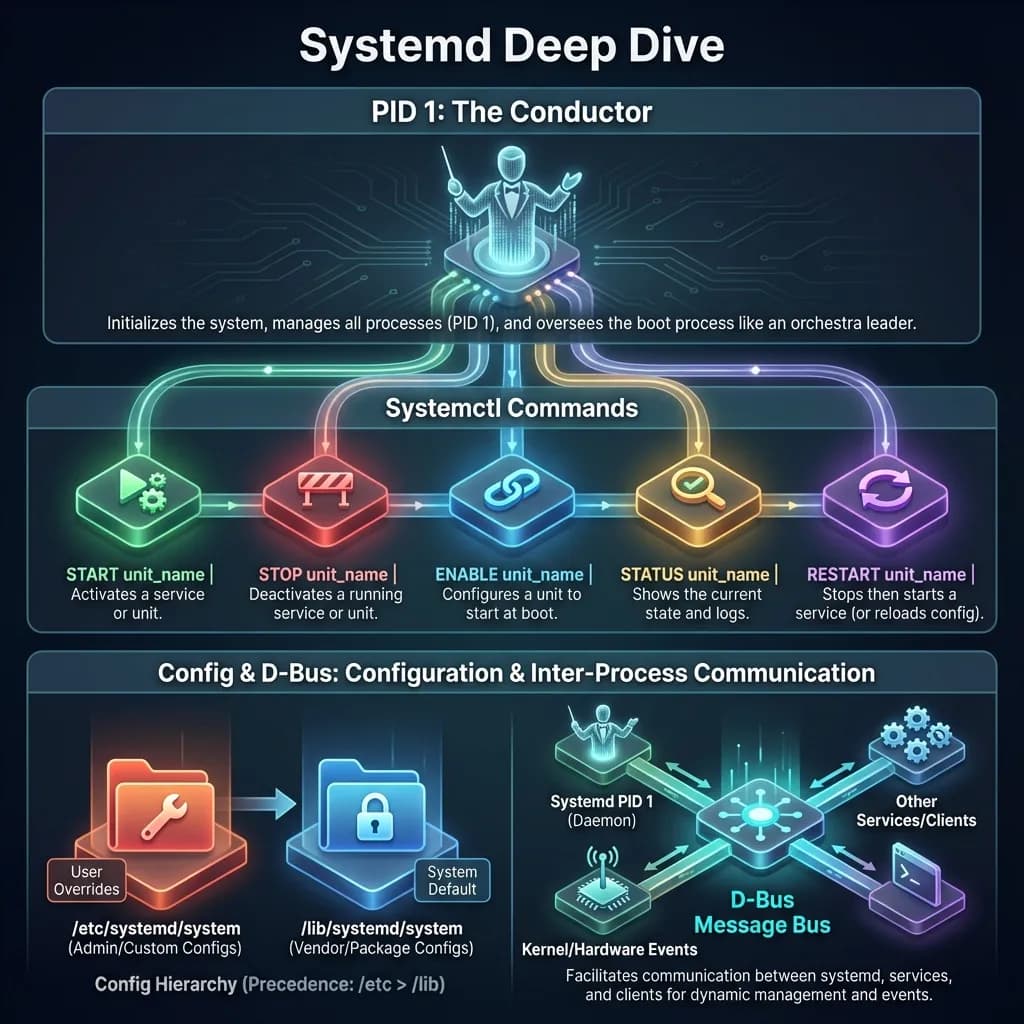
systemd is the init system and service manager for modern Linux. Here's the mind-bending part: it's PID 1—the first process that starts when your Linux system boots. Everything else? It's a child of systemd. That's a lot of responsibility for one program (which explains why people have, uh, opinions about it).
What It Actually Does
- Starts and supervises all system services and daemons
- Manages dependencies (if Service B needs Service A, systemd handles that ordering)
- Handles the entire boot sequence
- Tracks what's happening with processes using cgroups (Linux control groups—basically, "who used how many resources?")
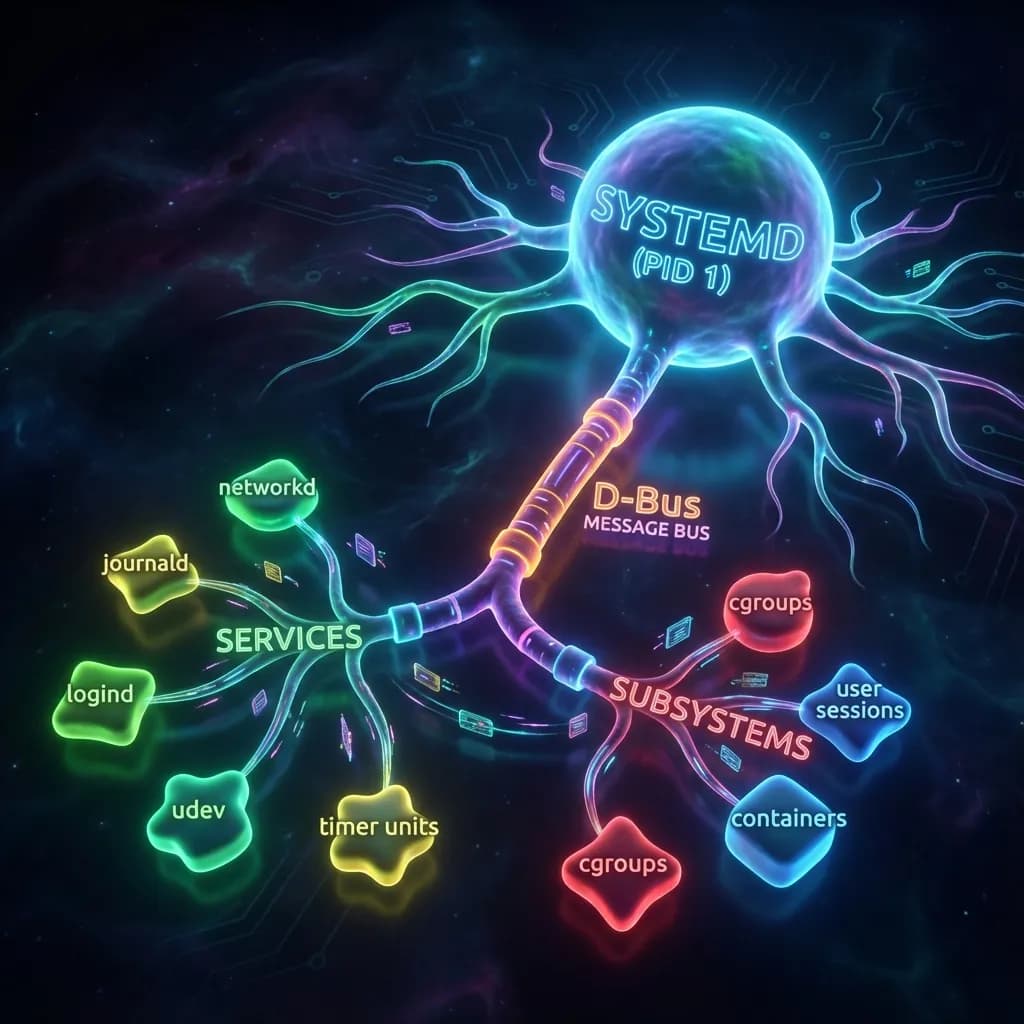
- Provides integrated logging, DNS resolution, networking—basically becomes the nervous system of your OS
The Conductor Analogy (Or How I Finally Explained It to My Friends)
Think of systemd as an orchestra conductor. The daemons are musicians, the unit files are sheet music, and systemd's job is:
- Knowing when each musician should enter
- Monitoring if anyone's playing off-key
- Restarting someone if they fall asleep mid-performance
- Capturing the whole thing in a recording (those are logs)
systemctl: Your Remote Control
systemctl is the command-line tool you use to talk to systemd. It's the client to systemd's server. When you run a command, systemctl essentially texts systemd over D-Bus asking it to do something.
The Commands You'll Actually Use
# Start/stop services right now
systemctl start nginx
systemctl stop nginx

# Make them auto-start when the system boots
systemctl enable nginx
systemctl disable nginx

# Check if it's running (and why, if it's not)
systemctl status nginx
systemctl --failed        # Show all failed services
reload vs restart: The Important Distinction
This one confused me for embarrassingly long:
reload – "Hey service, read your config again but keep running." No downtime. The process keeps humming along. Great for when you tweak config files and don't want to interrupt service.
restart – "Stop everything, then start again." Brief downtime. Useful when a service is misbehaving or the config change requires a full restart to take effect.
The rule: always try reload first if the service supports it. If it doesn't, that's what restart is for.
How the Magic Works
When you run systemctl start nginx:
- systemctl sends a message to systemd via D-Bus (inter-process communication)
- systemd says "Got it" and reads the
nginx.serviceunit file - systemd creates the nginx process according to what that file says
- systemd then watches that process, ready to restart it if needed
It's genuinely elegant once you see it.
The *ctl Command Family (Or: Why Everything Has a Special Tool)
Most of these commands follow the same pattern: they're systemd's way of managing different system subsystems through a unified interface.
resolvctl – DNS Management
Talks to systemd-resolved (the DNS daemon). You can check which DNS servers your system is using, test DNS queries, or flush caches.
resolvctl status          # Show current DNS config
resolvectl query example.com  # Query a domain
resolvectl reset-statistics   # Clear DNS stats
hostnamectl – Hostname & System Info
Sets or displays your system's hostname and metadata. Instead of editing /etc/hostname manually like some kind of caveman.
hostnamectl               # Show current hostname and OS info
hostnamectl set-hostname myserver
Other Notable *ctl Tools
- journalctl – Your window into systemd-journald (the logging daemon). Want to see everything that happened?
journalctlis your friend. - timedatectl – Manages time, date, and timezone settings
- loginctl – Handles user sessions and login events
All of them talk to systemd the same way: through D-Bus.
Configuration Files: The Distributed Config System
systemd doesn't have one giant config file (which is either brilliant or confusing depending on who you ask). Configuration is distributed across multiple files, each handling a specific part.
systemd's Main Configuration
Global behavior:
/etc/systemd/system.conf– System-wide settings like resource limits and timeouts/etc/systemd/user.conf– Settings for user-session systemd instances
Component-specific configs:
/etc/systemd/resolved.conf– DNS resolution settings/etc/systemd/networkd.conf– Network interface management/etc/systemd/journald.conf– Logging behavior/etc/systemd/logind.conf– Login and session handling
Honestly? You rarely touch these directly. Most customization happens in unit files (which I'll get to in a second).
Quick Note on nsswitch.conf
This one's not systemd-specific, but it's important: /etc/nsswitch.conf defines where your system looks up information:
hosts: files dns
This means "check /etc/hosts first, then query DNS." You might change this if you have LDAP or Active Directory in your environment. It's one of those files that quietly controls a lot of system behavior.
The /lib/systemd/ and /etc/systemd/ Split
Here's a pattern that confused me until someone explained it: systemd keeps distribution defaults and your customizations separate.
Directory Structure
/lib/systemd/system/ (or /usr/lib/systemd/ on some distros)
- Contains default unit files like
nginx.service,ssh.service,docker.service - Put there by package installations
- Don't edit these directly—they get overwritten when packages update
/lib/systemd/systemd
- The actual systemd binary (PID 1)
/lib/systemd/systemd-*
- Helper programs and daemons:
systemd-resolved– DNSsystemd-journald– Loggingsystemd-networkd– Network managementsystemd-udevd– Device management
The Override Pattern
/lib/systemd/system/     ← Distribution defaults (don't touch)
/etc/systemd/system/     ← Your customizations (edit here!)
When systemd looks for a service, it checks /etc/ first (your stuff), then falls back to /lib/ (defaults). This means you can:
- Copy a service file to
/etc/systemd/system/and modify it - Or create an override:
/etc/systemd/system/nginx.service.d/override.confwith just your changes
The second approach is cleaner if you're only changing a few options.
Unit Files: The Blueprint for Services
Unit files are INI-style configuration files that describe how systemd should run services, timers, mounts, and other things.
Where They Live & Format
[Unit]
Description=My Custom Service
After=network.target

[Service]
Type=simple
ExecStart=/usr/bin/myapp
Restart=on-failure
RestartSec=5s

[Install]
WantedBy=multi-user.target
[Unit] – Metadata and dependencies
[Service] – How to run the actual process
[Install] – Where this unit should be pulled in (basically, when to start it)
Common options:
Type=simple– Standard daemon that starts and stays runningRestart=on-failure– Only restart if it exits with an errorRestart=always– Always restart, no matter whatExecStart– The command to runWorkingDirectory– What directory to run from
Understanding D-Bus: The Message Bus Behind Everything
D-Bus (Desktop Bus) is the inter-process communication system that lets programs on your Linux system talk to each other. It's the infrastructure that makes systemctl possible.
The Problem It Solves
Without D-Bus, every program would invent its own way to communicate. You'd have sockets here, pipes there, signals everywhere, and nobody would understand how anything worked. D-Bus is like a postal service—everyone puts messages on the same bus, and the daemon routes them correctly.
Two Types of Buses
System Bus – For system-wide stuff
- systemd, NetworkManager, systemd-resolved all use this
- One per system
- Requires proper permissions to access
- This is how systemctl talks to systemd
Session Bus – For user applications
- Desktop apps, notification daemons, music players
- One per logged-in user
- Less restrictive permissions
Real-World D-Bus Communication
systemctl start nginx →
  connects to system bus →
    sends "start nginx" to systemd →
      systemd starts it →
        sends back "OK" or "error"
Another example:
NetworkManager detects network change →
  broadcasts "network changed" signal →
    listening apps react (browser updates, etc.)
Key D-Bus Concepts
Methods – Functions you can call on another program
- Example: systemctl calls systemd's "StartUnit" method
Signals – Broadcasts that programs emit
- Example: systemd broadcasts "service started" and apps listen
Properties – Values you can query or set
- Example: A service's current status
Peeking Under the Hood
You can actually watch D-Bus messages if you're curious:
dbus-monitor --system          # Watch system bus
dbus-monitor --session         # Watch session bus
busctl list --system           # List services on system bus

# Even call methods directly (advanced stuff)
busctl call org.freedesktop.systemd1 \
  /org/freedesktop/systemd1 \
  org.freedesktop.systemd1.Manager \
  StartUnit ss nginx.service replace
Process vs Service: The Distinction That Matters
These words get thrown around interchangeably, which is confusing because they actually mean different things.
What's a Process?
A process is any running program. Any program. ls, vim, python script.py—all processes. It's the fundamental unit of execution on the OS.
Characteristics:
- Has a Process ID (PID)
- Uses memory and CPU
- Can be short-lived (exits when done) or long-lived
- Can be interactive or background
- Usually dies when its job finishes
What's a Service (or Daemon)?
A service is a special kind of long-running process that:
- Runs continuously in the background
- Starts automatically at boot (if enabled)
- Provides ongoing functionality without user interaction
- Restarts automatically if it crashes (if configured)
- Is managed by systemd
Characteristics:
- Has a
.serviceunit file - Monitored and managed by systemd
- Designed for continuous operation
- Handles system or application services
Key Differences Table
| Aspect | Process | Service |
|---|---|---|
| Lifetime | Temporary (runs, exits) | Continuous (always running) |
| Purpose | Does one task | Provides ongoing functionality |
| Management | User or other processes | systemd handles it |
| Auto-restart | Nope | Yes (if configured) |
| Boot behavior | Doesn't start | Can auto-start |
The Relationship
Here's the key: Every service is a process, but not every process is a service.
When you run systemctl start nginx:
- systemd spawns an nginx process
- That process runs as a daemon (unattended, background)
- It keeps running
- systemd watches it continuously
- If it crashes, systemd restarts it
Daemon vs Service Terminology
These are basically the same thing, just different eras of Linux:
Daemon – Old Unix term
- sshd, httpd, mysqld (note the 'd' at the end)
- Traditional terminology
Service – Modern systemd terminology
- nginx.service, docker.service
- Current standard
A Real Example: Installing and Managing nginx
This is where everything clicks into place. Let me walk through what actually happens when you install, start, and enable a service.
Step 1: Install nginx
apt install nginxWhat systemd sees:
- nginx binary goes to
/usr/sbin/nginx - Service file appears at
/lib/systemd/system/nginx.service - Config files land in
/etc/nginx/ - nginx is NOT running yet—it's just installed
Verify:
ps aux | grep nginx
# (no results—nothing running)

systemctl status nginx
# Shows: inactive (dead)
Step 2: Start nginx Right Now
systemctl start nginxWhat happens:
- systemd reads
/lib/systemd/system/nginx.service - systemd spawns the nginx process according to that file
- nginx is now running in the background
- systemd is monitoring it
Verify:
ps aux | grep nginx
# root      1234  0.0  0.1 ...  nginx: master process
# www-data  1235  0.0  0.2 ...  nginx: worker process

systemctl status nginx
# Shows: active (running)
Step 3: The Reboot Problem
Here's the part that tripped me up: just starting a service doesn't make it auto-start at boot.
If you reboot now:
reboot
# ... system comes back ...

systemctl status nginx
# Shows: inactive (dead)
# It didn't start automatically!
You'd have to manually systemctl start nginx after every reboot. Not ideal.
Step 4: Enable at Boot
systemctl enable nginxWhat this does:
- Creates a symlink in
/etc/systemd/system/multi-user.target.wants/nginx.service - Tells systemd "start this during boot"
- nginx now auto-starts on every reboot
reboot
# ... system comes back ...

systemctl status nginx
# Shows: active (running)
# Started automatically!
Why Not Just Run nginx Manually?
You could:
nginxBut you'd lose everything systemd provides:
- ❌ No auto-restart if it crashes
- ❌ No auto-start at boot
- ❌ Logs go everywhere (not managed)
- ❌ Manual PID tracking if you need to kill it
- ❌ No dependency ordering
- ❌ No resource limits or security constraints
With systemd:
systemctl start nginx       # Start it
systemctl enable nginx      # Auto-start at boot
systemctl stop nginx        # Clean shutdown
systemctl restart nginx     # Full restart
systemctl reload nginx      # Config reload, no downtime
systemctl status nginx      # Full status and recent logs
journalctl -u nginx -f      # Follow logs in real-time
Way better.
The Three-State Understanding
This is what clicked for me:
install ≠ running ≠ enabled at boot
Three completely separate states:
- Installed: Software is on disk, systemd knows about it
- Running: Process is currently executing
- Enabled: Will auto-start on next reboot
You can have any combination:
- Installed but not running or enabled (sit in disk, do nothing)
- Installed and running, but not enabled (works now, gone after reboot)
- Installed, running, and enabled (the usual setup)
This separation is actually super useful for development and testing.
What systemctl Status Actually Shows
$ systemctl status nginx
● nginx.service - A high performance web server and reverse proxy
   Loaded: loaded (/lib/systemd/system/nginx.service; enabled; vendor preset: enabled)
   Active: active (running) since Thu 2025-12-11 14:30:00 UTC; 2h 15min ago
   Main PID: 1234 (nginx)
    Memory: 45.2M
    CGroup: /system.slice/nginx.service
            ├─1234 nginx: master process /usr/sbin/nginx -g 'daemon off;'
            └─1235 nginx: worker process
Breaking this down:
- Loaded: Where the unit file is and if it's enabled
- Active: Current state and how long it's been running
- Main PID: The actual process ID you'd see in
ps - Memory: Resource usage
- CGroup: The full process tree
Quick Command Reference
# Essential service management
systemctl start service-name
systemctl stop service-name
systemctl restart service-name
systemctl reload service-name          # Config reload only
systemctl status service-name
systemctl enable service-name
systemctl disable service-name

# Check what failed
systemctl --failed
systemctl status failed-service

# List everything
systemctl list-units --type=service
systemctl list-unit-files

# View a unit file
systemctl cat nginx.service
systemctl edit nginx.service           # Edit with proper systemd integration

# Reload config after changes
systemctl daemon-reload

# System info
hostnamectl
resolvectl status
timedatectl
loginctl

# Logs
journalctl -u service-name
journalctl -u service-name -f          # Follow in real-time
journalctl -u service-name --since yesterday
The Aha Moment
Once you understand that systemd is just PID 1 managing everything through a coordinated system of unit files, D-Bus communication, and cgroups for resource tracking, it actually makes sense. The complexity isn't there to be difficult—it's there because managing a Linux system is genuinely complex.
systemd's distributed configuration, modular *ctl tools, and dependency management give you fine-grained control while keeping things consistent. That's worth a little extra learning.
My advice: don't try to understand all of systemd at once. Start with systemctl start/stop/enable/disable, understand what service files look like, then gradually explore the rest. This is a system you'll interact with literally every day, so investing time in understanding it pays dividends.
What systemd concept clicked for you? (Or is still totally confusing? I can relate.)
Visual Summary